
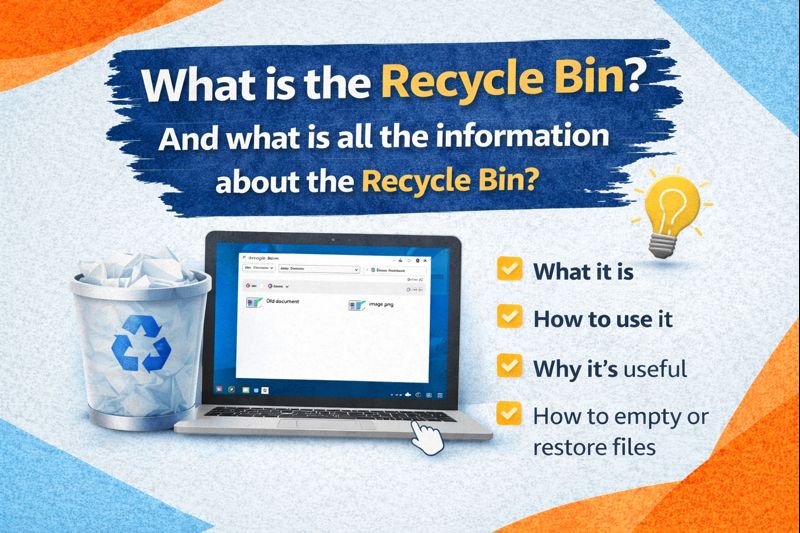
What Is the Recycle Bin? A Complete Guide to Understanding the Recycle Bin in Windows
What actually occurs to a file once you remove it from your computer? Does it disappear forever? Or does the system keep it somewhere temporarily? On a Windows computer, deleted items don’t vanish immediately. Instead, they are usually sent to a special storage location called the Recycle Bin.
The Recycle Bin is one of the most important — yet often misunderstood — features built into Windows. In this guide, we will explore what the Recycle Bin is, how it works, why it exists, how to use it, and advanced tips many users don’t know. By the end, you’ll fully understand every important detail about it.
1. What Exactly Is the Recycle Bin?
The Recycle Bin is a temporary holding area where deleted files and folders are stored before they are permanently erased. Think of it like a trash bin in your house. When you throw something away, it doesn’t instantly disappear — it stays in the bin until you empty it.
Similarly, when you delete a file in Windows:
- It moves to the Recycle Bin
- It stays there until you choose to permanently delete it
- You can restore it back to its original location if needed
So instead of losing files instantly, Windows gives you a safety net.
This feature prevents accidental data loss and gives every user a second chance to recover mistakenly deleted files.
2. Where Is the Recycle Bin Located?
You’ll normally see the Recycle Bin icon on your desktop screen. It looks like a waste-paper basket with a recycling symbol. If it’s missing, it can be re-enabled via desktop icon settings.
Double-clicking the icon opens a window that displays all deleted items currently stored inside it.
3. What Kind of Items Go into the Recycle Bin?
Most files and folders deleted from internal drives are sent here, including:
- Documents
- Images
- Videos
- Audio files
- Downloaded content
- Desktop files
- Folders
However — not everything uses the Recycle Bin.
4. Items That Skip the Recycle Bin
Some deletions bypass the Recycle Bin completely, such as:
- Files deleted using Shift + Delete
- Files removed from external drives or USB sticks
- Files deleted by cleaning tools
- Items exceeding the size limit of the Recycle Bin
- System-level clean-ups
- When the Recycle Bin feature is disabled
Files deleted this way are erased immediately and are much harder to recover.
5. How Large Is the Recycle Bin? (Storage Limit Explained)
The Recycle Bin has a fixed storage size, usually a percentage of your drive capacity. When the bin becomes full, Windows automatically removes the oldest deleted files to make space for newer ones.
Users can change:
- The storage limit
- Whether to delete instantly
- Whether to show confirmation messages
This is done through Recycle Bin properties.
6. How the Recycle Bin Actually Works (Behind the Scenes)
When a file is deleted:
- Windows flags it as deleted
- The file is moved to a hidden system folder
- The original location and filename are recorded
- The file remains usable until the bin is emptied
- Restoring returns it to its original folder
So — deleted files aren’t erased immediately.
They’re simply relocated and marked as removable.
7. How to Restore Files from the Recycle Bin
If you delete something by mistake, don’t panic.
To bring it back:
- Open the Recycle Bin
- Find the deleted file
- Right-click it
- Click Restore
The item returns to the same folder it was deleted from — like magic ✨
You can also restore multiple items at once, or even restore everything using Restore all items.
8. How to Permanently Delete Files from the Recycle Bin
To erase files forever:
- Open Recycle Bin
- Click Empty Recycle Bin
- Confirm
Once emptied, normal users cannot restore these files without special data-recovery software.
9. What Happens After Permanent Deletion?
Even after emptying the Recycle Bin, data doesn’t vanish instantly. Instead, Windows marks that storage space as available for reuse. New files may overwrite it eventually.
That’s why specialized recovery tools can sometimes retrieve “permanently deleted” files — unless the storage space has already been reused.
10. Recycle Bin on Different Drives
Each storage drive has its own Recycle Bin space. So deleting from Drive C and Drive D stores files separately — even though you see them together in the interface.
11. Recycle Bin on External Drives
Most external devices skip the Recycle Bin and delete items instantly. Some tools can change this behavior, but default Windows settings don’t store USB deletions inside the bin.
12. Recycle Bin Customization Options
Right-click the icon → Properties
Here you can:
- Adjust storage size
- Enable instant delete
- Toggle confirmation prompts
- Configure per-drive storage
This helps manage storage and deletion behavior.
13. Why the Recycle Bin Exists — The Real Purpose
The Recycle Bin was created to:
- Prevent accidental data loss
- Provide a safe backup space for deleted content
- Reduce user mistakes
- Give time to rethink before erasing data
It’s one of the most important safety features built into Windows.
14. Auto-Clearing & Storage Maintenance
Windows may clear Recycle Bin files automatically when:
- Storage Sense is enabled
- Space becomes critically low
- Users schedule automatic clean-ups
This prevents unnecessary storage consumption.
15. Advanced Tips Many Users Don’t Know
Here are some powerful tricks:
Empty only selected files
Select → Right-click → Delete
Restore to a different folder
Copy the file from Recycle Bin → Paste it anywhere
Sort deleted items
You can sort by:
- Date deleted
- Original location
- Type
- Size
Use keyboard shortcuts
Delete permanently → Shift + Delete
Add Recycle Bin to File Explorer sidebar
So it’s easier to access
16. Common Mistakes Users Make
1. Assuming emptying the bin will improve system speed
2. Thinking items stay forever
3. Deleting sensitive data without wiping
4. Emptying the bin without checking
5. Assuming external drives use the bin
6. Thinking restored files return unchanged (sometimes overwrites happen)
Understanding the bin reduces data loss risk.
17. Recycle Bin vs Permanent Delete — Which Should You Use?
Use Recycle Bin deletion when:
- You want safety
- You frequently review deleted items
- You sometimes change your mind
Use Shift + Delete only when:
- You’re sure the data is useless
- You’re deleting sensitive items
- You need instant deletion
Always be cautious — permanent deletion cannot be undone easily.
18. Recycle Bin & Security / Privacy Concerns
Deleted files inside the Recycle Bin still exist on your drive.
Anyone with access to your PC could recover them.
If privacy matters:
- Empty the bin
- Use secure-delete software for sensitive files
- Encrypt storage where necessary
This prevents data exposure.
19. Troubleshooting Recycle Bin Problems
Sometimes issues occur:
- Icon missing
- Can’t delete files
- Won’t open
- Corruption
- Wrong storage size
These can usually be fixed by:
✔ Resetting the Recycle Bin
✔ Running system checks
✔ Repairing Windows explorer
✔ Re-adding the desktop icon
20. Why the Recycle Bin Is Essential for Every User
It plays a key role in:
- Data protection
- Mistake recovery
- Storage management
- System safety
- User confidence
Without it — accidental deletion would be a nightmare.
21. Simple Explanation — In One Line
The Recycle Bin is a temporary storage feature that keeps deleted files until you choose to permanently erase or restore them.
That’s the simplest way to understand it.
22. Frequently Asked Questions About the Recycle Bin
Does deleting from the Recycle Bin erase files forever?
For normal users — yes. But until overwritten, data can sometimes be recovered.
Can the Recycle Bin be disabled?
Yes — through properties. But this is not recommended for beginners.
Why can’t I find the Recycle Bin icon?
It may be hidden from desktop icons settings.
Does the Recycle Bin slow the computer?
No — it only stores deleted content.
Can I recover files deleted from the bin?
Sometimes — with data-recovery tools. But success is not guaranteed.
23. Final Summary — Everything You Need to Know
Here’s a quick recap:
- The Recycle Bin stores deleted files temporarily
- You can restore or permanently delete them
- Some files bypass the bin
- Storage size is customizable
- It provides an essential safety layer
- Recovery is possible until overwritten
- Privacy requires proper clearing