
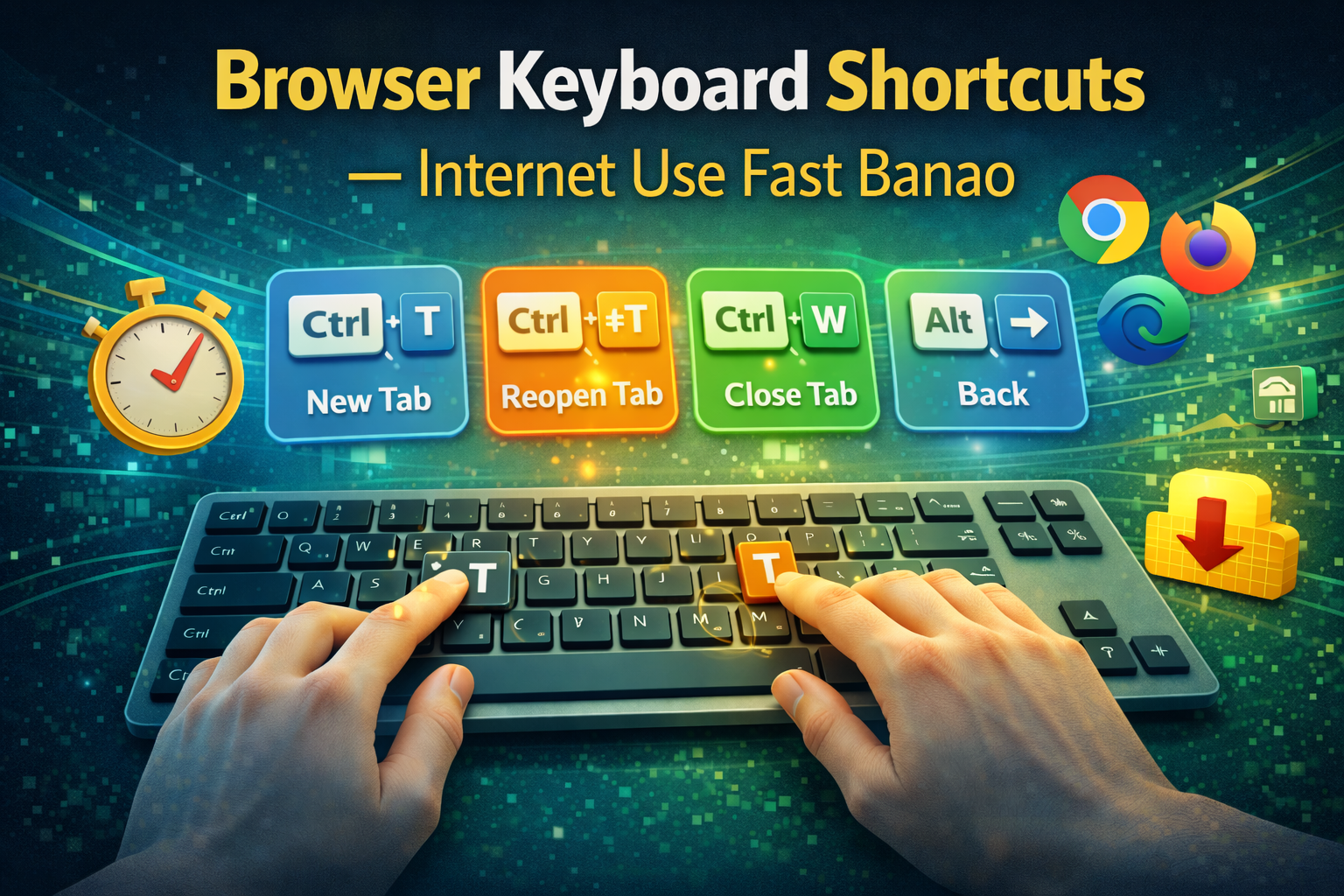
Browser Keyboard Shortcuts — Make Your Internet Browsing Super Fast (Complete English Guide)
Today, internet browsing has become a part of our daily routine — whether it’s office work, online classes, shopping, research, entertainment, or social media.
But here’s the truth:
If you rely only on your mouse, your speed becomes almost half.
Smart users, professionals, programmers, digital marketers, bloggers — all of them use keyboard shortcuts because they help you work 2–3 times faster.
In this complete guide, we will learn:
- Browser keyboard shortcuts
- Shortcuts for tabs, search, navigation & privacy
- Time-saving pro tips
- Shortcuts for both Windows & Mac
- Real-life usage examples
And the best part?
Keyboard shortcuts are super easy to learn — just a little practice!
PTable of Contents (SEO Optimized)
(Helps Google + Users)
- Why Browser Keyboard Shortcuts Matter
- Tab Control Shortcuts
- Search & Address Bar Shortcuts
- Page Navigation Shortcuts
- Refresh & Reload Shortcuts
- Privacy & Security Shortcuts
- Zoom & Readability Shortcuts
- Page Handling & Scrolling
- Bookmarks & Downloads Shortcuts
- Real-Life Usage Examples
- Common Shortcuts for Mac Users
- Beginner Tips for Learning Shortcuts
- Most Useful Browser Shortcuts — Quick Table
- Hidden Productivity Browser Shortcuts
- Smart Google Search Tips
- Privacy & Safety Tips
- Common Beginner Mistakes
- Advanced Browser Productivity Tips
- Tips for Students, Bloggers & Office Users
- FAQ — Browser Keyboard Shortcuts
- Final Golden Tips
Part 1: Why Should You Learn Browser Keyboard Shortcuts?
Let’s first understand why shortcuts are so important:
1. They Save a Lot of Time
One click vs one key press…
Faster work = Higher productivity
2. You Become Less Dependent on the Mouse
Especially useful when working on laptops or during travel.
3. Multitasking Becomes Effortless
You can switch between tabs and windows instantly.
4. You Develop Professional Browsing Habits
Helpful in every field:
- IT
- Digital Marketing
- Blogging
- Office Work
- Freelancing
- Research & Studies
Part 2: Tab Control Shortcuts — Your Browsing Speed Booster
Open a New Tab
Windows: Ctrl + T
Mac: Command (⌘) + T
Use this when you want to:
- Search something new
- Open a website without closing the current one
Reopen the Last Closed Tab
Windows: Ctrl + Shift + T
Mac: Command (⌘) + Shift + T
Accidentally closed an important tab?
Use this shortcut — and it comes back instantly!
Switch Between Tabs
Windows:
Next tab → Ctrl + Tab
Previous tab → Ctrl + Shift + Tab
Mac:
Next tab → Control + Tab
Or jump directly to a specific tab:
Ctrl + 1 → 8 = Go to tab number 1–8
Ctrl + 9 = Jump to the last tab
Close the Current Tab
Windows: Ctrl + W
Mac: Command (⌘) + W
No need to drag the mouse to the close ❌ button.
Part 3: Search & Address Bar Shortcuts — Lightning-Fast Surfing
Go to the Address Bar Instantly
Windows: Ctrl + L
Mac: Command (⌘) + L
Just type → Press Enter → Done.
Instant Search
Simply type in the address bar — your browser automatically searches on Google.
Part 4: Page Navigation Shortcuts — Move Back & Forward Easily
Go Back
Alt + Left Arrow
Go Forward
Alt + Right Arrow
Works in almost all browsers: Chrome, Edge, Firefox, Brave.
Part 5: Refresh, Reload & Hard Reload
Normal Refresh
Windows: F5 or Ctrl + R
Mac: Command (⌘) + R
Hard Refresh (Bypass Cache)
Windows: Ctrl + Shift + R
Mac: Command (⌘) + Shift + R
Very useful for:
- Developers
- Bloggers
- Designers
- Website updates
Because it loads the fresh version of the page.
Part 6: Privacy & Security Shortcuts
Clear Browsing History
Windows: Ctrl + Shift + Delete
Mac: Command (⌘) + Shift + Delete
You can clear:
- Cache
- Cookies
- Browsing history
Open Incognito / Private Mode
Windows: Ctrl + Shift + N
Mac: Command (⌘) + Shift + N
Use it when:
- Logging into someone else’s account
- Doing private browsing
- You don’t want your history saved
Part 7: Zoom & Readability Shortcuts
Zoom In → Ctrl + +
Zoom Out → Ctrl + –
Reset Zoom → Ctrl + 0
Perfect for users who find small text difficult to read.
Part 8: Page Handling & Scrolling Shortcuts
Go to Top of Page → Home / Fn + Left Arrow
Go to Bottom → End / Fn + Right Arrow
Scroll:
Spacebar → Scroll down
Shift + Spacebar → Scroll up
Part 9: Download, Bookmark & Tools Shortcuts
Open Download Manager → Ctrl + J
Add Bookmark → Ctrl + D
Open Bookmark Manager → Ctrl + Shift + O
Part 10: Real-Life Usage Examples
Example 1 — Blogging / Writing
- Research faster
- Manage multiple tabs
- Open sources quickly
Example 2 — Students
- Quickly search notes
- Keep study tabs organized
- Research faster
Example 3 — Office / Work from Home
- Check emails faster
- Switch dashboards instantly
- Browse reports smoothly
Part 11: Common Rules for Mac Users
Just remember:
Ctrl (Windows) = Command ⌘ (Mac)
Most shortcuts remain the same.
Part 12: Best Tips for Beginners
- Practice 5–6 shortcuts daily
- Slowly reduce mouse usage
- Learn to manage tabs efficiently
- Build shortcut habits
Within a few days —
you’ll browse like a pro!
Part 13: Most Useful Browser Shortcuts — Quick Table
Below is a simple table that users can easily remember:
| काम | Windows Shortcut | Mac Shortcut |
|---|---|---|
| नई Tab खोलना | Ctrl + T | ⌘ + T |
| बंद हुई Tab वापस लाना | Ctrl + Shift + T | ⌘ + Shift + T |
| Tab बंद करना | Ctrl + W | ⌘ + W |
| अगली Tab पर जाना | Ctrl + Tab | Control + Tab |
| Previous Tab | Ctrl + Shift + Tab | Control + Shift + Tab |
| Last Tab पर जाना | Ctrl + 9 | ⌘ + 9 |
| Address Bar select करना | Ctrl + L | ⌘ + L |
| Page Refresh | F5 / Ctrl + R | ⌘ + R |
| Hard Refresh | Ctrl + Shift + R | ⌘ + Shift + R |
| History Page खोलना | Ctrl + H | ⌘ + Y |
| Download Page खोलना | Ctrl + J | ⌘ + Option + L |
| Zoom In / Out | Ctrl + + / – | ⌘ + + / – |
| Zoom Reset | Ctrl + 0 | ⌘ + 0 |
| Private Window | Ctrl + Shift + N | ⌘ + Shift + N |
| Bookmark Add | Ctrl + D | ⌘ + D |
Tip:
If you learn just these 15–20 shortcuts, your browsing speed may increase 2–3 times.
Part 14: Hidden Productivity Shortcuts
Open a File (PDF/HTML) → Ctrl + O
Show/Hide Bookmark Bar → Ctrl + Shift + B
Open Developer Tools → Ctrl + Shift + I
This mode is especially useful when you’re reading, watching films, or giving presentations.
Part 15: Smart Search Tips — Master Google Faster
Find a word on a page → Ctrl + F
Example: Quickly search keywords in long articles.
Open a Link in New Tab
Hold Ctrl + Click
Part 16: Privacy & Safety Tips
- Always use Incognito Mode on public computers
- Clear browsing history after use
- Never save passwords on shared systems
- Disable auto-login
- Check downloads regularly
- Avoid entering card details on unknown websites
Part 17: Common Beginner Mistakes — And Fixes
Mistake 1: Keeping Too Many Tabs Open
- Solution: Close unwanted tabs using Ctrl + W
- Or bookmark important pages
Mistake 2: Using the Mouse for Everything
Solution: Practice top shortcuts daily
Mistake 3: Not Clearing Cache
Solution: Use Ctrl + Shift + Delete
Clear monthly for best performance
Part 18: Power Tips for Advanced Users
Shortcut Combo Trick
Ctrl+T→OpenNewTab
Ctrl+L→TypeURL
Enter → Opensite
This makes you ultra-fast
Use Multiple Browser Profiles
Create separate profiles for:
✔ Work
✔ Study
✔ Personal
Part 19: Special Tips for Students, Bloggers & Office Users
Students
✔ Search notes quickly
✔ Manage research tabs
✔ Keep lecture material open
Bloggers
✔ Speed up keyword research
✔ Compare sources
✔ Improve workflow
Office Users
✔ Check emails faster
✔ Handle CRM/ERP easily
✔ Navigate dashboards smoothly
Part 20: Frequently Asked Questions
1. Do these shortcuts work in all browsers?
Yes — Chrome, Edge, Firefox, Brave, etc.
2. Do these shortcuts work on Android phones?
No — these are for PC/Laptop.
(Some keyboards on Android have limited shortcut support.)
3. Are shortcuts difficult to remember?
Not at all
Start with 5 shortcuts daily — they’ll become a habit.
4. Are Windows & Mac shortcuts different?
Only one major difference:
Ctrl (Windows) = Command ⌘ (Mac)
Rest are almost the same.
Part 21: Final Golden Tips — Become a Pro Browser User
✔ Use at least 5 shortcuts daily
✔ Pin important tabs
✔ Avoid too many open windows
✔ Keep bookmarks organized
✔ Use private browsing when needed
✔ Keep your browser lightweight
Slowly you’ll notice —
Your browsing speed will become so fast that others will be surprised!