
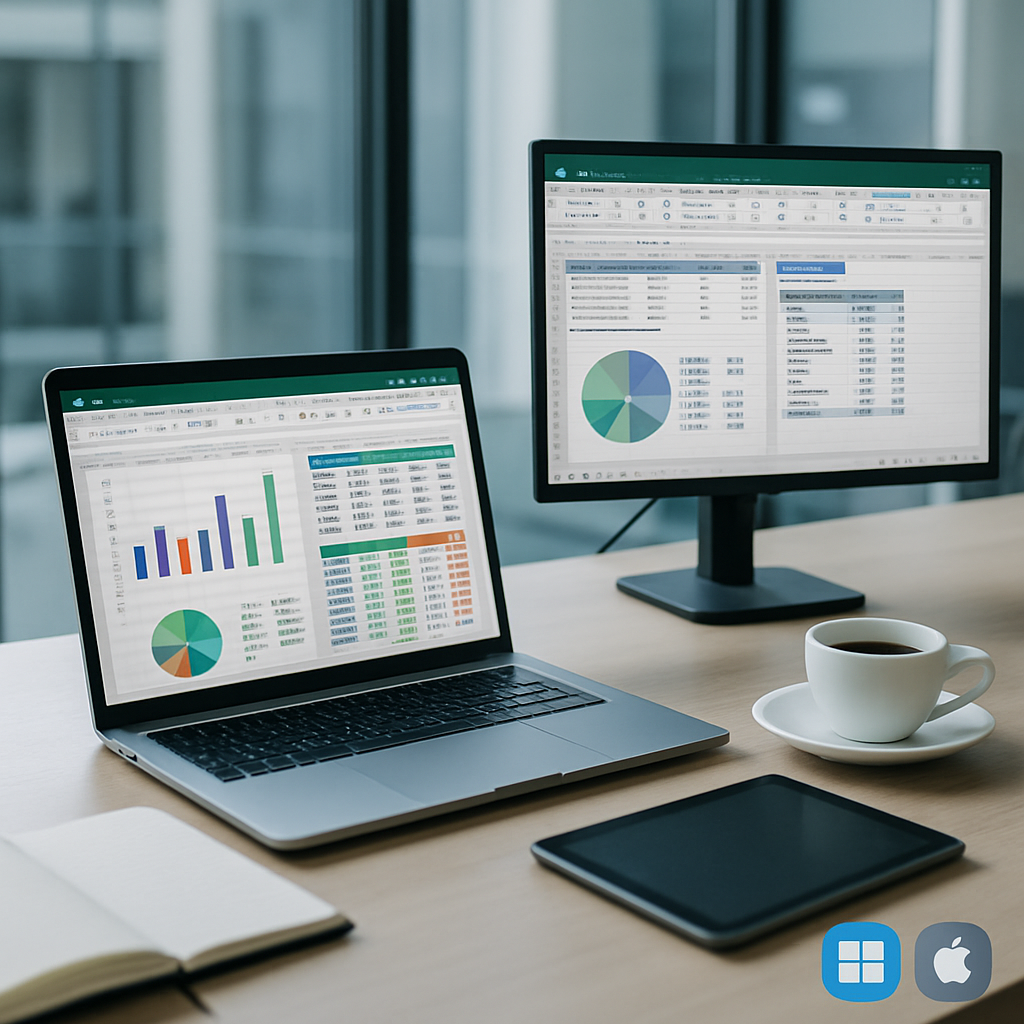
If you manage data across projects, Microsoft Excel is the trusted cornerstone for organizing numbers, lists, and insights. From simple budgets to complex dashboards, Excel helps you structure information, perform calculations, and present results clearly. In this guide, you’ll discover how to navigate Excel across desktop, online, and Mac, so you can work efficiently whether you’re at your desk or on the go. Whether you’re a beginner or a pro, mastering these tools can transform how you analyze data, collaborate with teammates, and drive decisions.
Choosing the Right Microsoft Excel Version for Your Workflow
Different workstyles call for different flavors of Excel. If you mainly work offline with large datasets and need powerful features, the desktop version—Windows or Mac—remains unmatched for performance and depth. If collaboration, sharing, and cloud access are top priorities, Excel Online or the Microsoft 365 suite offers real-time co-authoring, version history, and seamless integration with other services. Finally, for Mac users, Excel for Mac provides a native experience that aligns with macOS conventions while keeping compatibility with Windows workbooks.
When selecting an option, consider your device ecosystem, required features, and budget. You’ll often find that many teams blend versions: core data work in Excel Desktop, while quick edits or sharing are handled in Excel Online. The choice isn’t permanent—your workflow can evolve as needs change, and Microsoft’s cloud-first updates help keep all platforms aligned.
Excel Desktop, Excel Online, and Excel for Mac: A Quick Comparison
Excel Desktop (Windows and Mac)
The desktop edition of Excel delivers the richest feature set: advanced data tools, powerful macros, robust data models, and extensive formatting options. It shines with large workbooks, complex calculations, and tasks that require offline access. For Windows users, features like Power Pivot and Power Query integrate deeply with the broader Microsoft stack, while Mac users enjoy a polished native experience that mirrors the Windows interface in many respects.
Powerful Tools You’ll Love
On the desktop, you’ll find the most comprehensive set of data analysis tools, including pivot tables, advanced charting, data validation, and scripting via Visual Basic for Applications (VBA). If you need to automate repetitive tasks or build custom workflows, this is usually the most convenient environment to work in. Desktop Excel also handles very large datasets with speed and stability that Online variants struggle to match.
Additionally, the desktop version supports local storage, offline editing, and sophisticated add-ins that expand Excel’s capabilities. If your job involves financial modeling, engineering calculations, or inventory planning, the desktop experience often accelerates progress and reduces friction.
Excel Online: Collaboration in Real Time
Excel Online emphasizes collaboration, accessibility, and seamless sharing. It runs in a browser, so you can access your spreadsheets from any device with an internet connection. Real-time co-authoring means you can see teammates’ changes as they happen, which minimizes version-conflict problems and streamlines teamwork. It’s also tightly integrated with OneDrive and SharePoint for secure storage and easy sharing.
For teams prioritizing cloud-based workflows, Online is a strong option for daily editing, lightweight data tasks, and quick updates on the go. While it may not offer every desktop feature, it’s continually growing and often suffices for most common spreadsheet tasks. In practice, many users switch between Desktop for heavy lifting and Online for collaboration or quick edits.
Excel for Mac: Native Experience and Compatibility
Excel for Mac provides a native macOS experience with keyboard shortcuts and design conventions familiar to Mac users. While historically some features lagged behind Windows, recent updates have closed the gap significantly. For Mac-specific workflows, this edition offers excellent performance, robust formatting tools, and smooth interoperability with Windows via the cross-platform file formats.
Mac users often appreciate the cleaner interface and the ability to work offline with confidence. If your team uses Macs predominantly but still needs occasional Windows compatibility, saving workbooks in standard .xlsx formats ensures smooth sharing across platforms.
Core Excel Skills That Span All Platforms
Formulas and Functions You Must Master
Mastering formulas is the heart of Excel proficiency. Learn how to create reliable sums, averages, and logical tests, and then expand into more advanced functions like VLOOKUP, XLOOKUP, INDEX-MATCH, and conditional logic with IF, AND, or OR. Across desktop, online, and Mac versions, core functions work consistently, so investing time in learning how to use them efficiently pays long-term dividends.
Tip: start with a small practice workbook that mirrors your daily tasks. As you grow comfortable with basic calculations, progressively incorporate nested functions, dynamic arrays, and named ranges to make your formulas more readable and scalable.
Data Organization: Tables, Ranges, and PivotTables
Organizing data efficiently is essential for reliable analysis. Use structured tables to make data management more straightforward, enable automatic formula propagation, and improve readability. PivotTables are your best friends when you need to summarize large datasets, spot trends, or slice data by category. Both features are supported across platforms, though certain advanced options may appear in the desktop version first.
Consistency in data types and clear headers pays off in faster analysis and fewer errors. When you convert a range to a table, you unlock sorting, filtering, and dynamic range expansion that keeps your workbook resilient as data grows.
Charts, Dashboards, and Data Visualization
Visual representations help communicate insights quickly. Excel makes it easy to create charts, dashboards, and conditional formatting that highlight key metrics. Whether you’re building a quarterly sales dashboard or a project-tracking sheet, charts should tell a story at a glance. Across all platforms, the visuals you choose should be purposeful and accessible to your audience.
Consider combining charts with sparklines or heat maps to convey density and trend information compactly. If you’re sharing dashboards with teammates, keep the layout clean, with a clear narrative and minimal clutter to avoid cognitive overload.
Advanced Tactics: Data Cleaning, Automation, and Collaboration
Data Cleaning Techniques
Quality data begins with cleaning. Use features like Text to Columns, TRIM, CLEAN, and SUBSTITUTE to normalize data entries. Remove duplicates, standardize date formats, and ensure consistent units across your dataset. These steps reduce downstream errors and improve the reliability of analyses and reports.
For ongoing data preparation, consider creating a dedicated preprocessing sheet where raw data is standardized before being loaded into your main analysis workbook. This habit pays off when datasets grow in size or frequency of updates increases.
Automation: Macros and Power Query
Automation saves time and reduces manual errors. In Excel Desktop, macros (VBA) let you automate repetitive tasks, while Power Query enables powerful data extraction, transformation, and loading (ETL) processes. Power Query is particularly valuable for reshaping raw data into analysis-ready formats with minimal manual steps.
Power Query’s ability to connect to external data sources—CSV, databases, web services—helps you maintain up-to-date dashboards. Even Online users can leverage some automation through Flow-like features and connections, but the strongest automation capabilities live in the desktop environment.
Mail Merge and Data Import/Export
Mail merge remains a popular use case for combining data from Excel into Word or email templates. The process is well-supported across platforms, with slightly different steps depending on the software combination you use. For data import and export, Excel supports a wide range of formats, making it easy to share data with other tools, such as CRM systems, BI platforms, or ERP solutions.
When preparing data for mail merge, ensure your source workbook has clean, standardized headers and consistent data types to prevent misalignment in the merged documents.
Practical Learning Path: From Beginner to Pro
Beginner-Friendly Steps
Begin with the basics: enter data, format cells, and perform simple calculations. Create a few templates for common tasks—budgets, schedules, and lists—to build muscle memory. As you progress, practice with real-world datasets and gradually introduce formulas, charts, and simple data validation rules.
Consistency matters. Develop a habit of naming ranges, using tables, and documenting your formulas. These practices make your workbooks easier to maintain, even if someone else revisits them months later.
Milestones for Intermediate to Advanced
Next, master data cleansing, advanced formulas, and pivot tables. Move into data modeling with Power Pivot (where available) and learn to build dynamic dashboards. Explore data imports from external sources and automate repetitive steps with macros or Power Query to create robust, repeatable workflows.
Continuous practice through real projects—budgets, inventories, or sales analyses—will deepen your understanding. As you encounter new tasks, seek tutorials, practice sheets, and sample datasets that mirror your industry challenges.
Common Questions and Myths About Excel
Is Excel only for accountants or analysts? Not at all. Excel is a versatile tool that suits students, professionals, and hobbyists for data tracking, planning, and exploration. Can I use Excel on a Mac? Yes, Excel for Mac provides a native experience and excellent compatibility with Windows workbooks. Do I need to install anything to start? If you opt for Excel Online, you can begin instantly in your browser; otherwise, install the desktop version or download the Mac/Windows installer as needed.
Do I need to pay for Excel 365 to use it effectively? Many features are accessible with a standard license, but Microsoft 365 unlocks ongoing updates, cloud storage, and collaboration features that enhance modern workflows. The best approach is to align your license with your team’s collaboration and automation needs.
A Practical Toolkit: Free Resources, Downloads, and How to Get Started
Free Downloads and Trials
Several providers offer free Excel practice sheets, templates, and trial access to Excel Online or Microsoft 365. Taking advantage of trials allows you to test features, compare experiences across platforms, and identify the setup that best fits your needs. Look for official Microsoft resources and reputable educational partners to ensure quality content.
Online Tutorials and Practice Sheets
Structured courses, video tutorials, and interactive practice sheets can accelerate learning. Seek resources that cover: basic navigation, formula creation, data cleaning, pivot tables, charting, and automation. A steady, guided practice routine helps you progress from beginner to pro with confidence.
Next Steps: Implementing Your Excel Strategy Today
Start by identifying a small, real-world task you’d like to improve with Excel. Create a simple workbook that tracks what you do today, then apply formulas to automate repetitive calculations. Experiment with a table-based data set, build a few charts to visualize outcomes, and share the workbook with a colleague to practice collaborative editing.
As you gain confidence, expand to more complex tasks: import data from a source, cleanse it, and load it into a pivot-ready table. Schedule regular practice sessions and bookmark a few trusted tutorials to reference when you encounter a roadblock. With deliberate practice across desktop, online, and Mac versions, you’ll develop a durable, transferable skill set that enhances productivity and decision-making across your work and personal projects.