
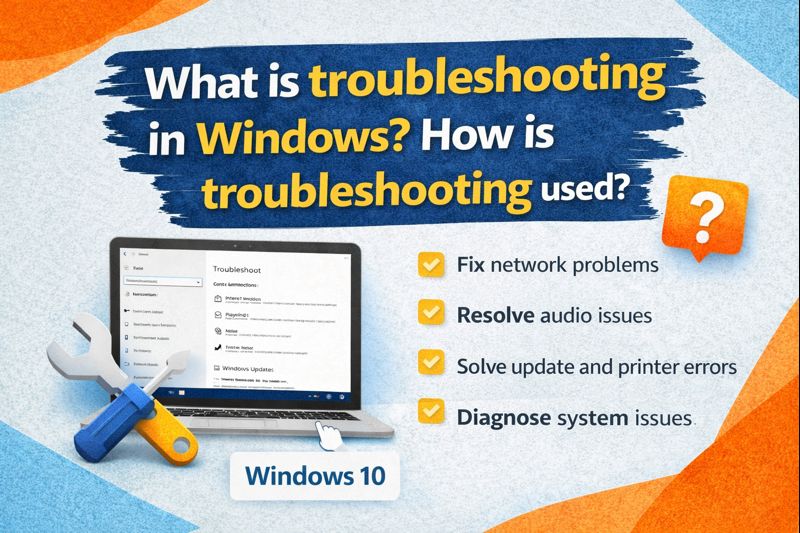
What Is Troubleshooting in Windows? How Is Troubleshooting Used? — Complete Beginner-Friendly Guide
Technology makes our daily work easier — but sometimes computers stop behaving the way we expect. Maybe your internet suddenly disconnects, your printer refuses to respond, the audio becomes silent, or the system freezes in the middle of an important task. When something like this happens on a Windows device, the process of finding the cause of the problem and fixing it is known as troubleshooting.
Troubleshooting is not only for technical experts. Anyone — whether a student, employee, freelancer, or home user — can follow simple steps to diagnose and repair common computer problems. In this guide, you’ll learn what troubleshooting means, how it is used in Windows, and why it matters.
1. What Does “Troubleshooting” Mean in Windows?
Troubleshooting in Windows refers to the method of identifying errors, analysing why they happen, and applying the correct solution to restore normal functioning. The goal is to figure out:
- What went wrong?
- Why did it happen?
- How can it be fixed?
Sometimes the solution is automatic — Windows detects and resolves the problem for you. Other times, you may need to follow specific steps or adjust settings manually.
So in simple words:
Troubleshooting = Problem Finding + Problem Solving
2. Why Is Troubleshooting Important?
Computers are built from many parts — software, drivers, hardware components, background services, network tools, and more. Even a tiny misconfiguration can cause disruptions.
Troubleshooting is important because it:
Saves time
You don’t always need a repair technician for small issues. Many problems can be fixed within minutes.
Improves performance
Fixing system glitches helps your PC run smoothly.
Prevents bigger failures
Small unresolved issues can turn into major problems later.
Reduces frustration
Knowing what to do keeps you calm when something goes wrong.
Helps you understand your device better
You learn how your computer works — which builds confidence.
3. Types of Problems That Troubleshooting Can Fix
Windows troubleshooting can be used for many everyday issues such as:
- Internet not working
- Printer not responding
- Headphones or speakers not detecting sound
- System running extremely slow
- Apps freezing or crashing
- Display problems
- Updates failing
- Bluetooth not connecting
- Battery and power issues
- Login error
- Device driver issues
- Hardware malfunction alerts
And much more.
So whenever your PC misbehaves, troubleshooting is your first step.
4. How Troubleshooting Works in Windows — Step by Step
Troubleshooting can be manual or automated. Let’s understand both.
A. Built-In Troubleshooters (Automatic Help From Windows)
Windows includes several built-in troubleshooters designed for specific categories. These tools automatically:
- Scan your computer
- Detect possible problems
- Suggest or apply fixes
You don’t need deep technical knowledge to use them — just follow the on-screen instructions.
To open them in Windows 10:
- Open Settings
- Select Update & Security
- Click Troubleshoot
- Choose the specific tool (for example: Internet Connections, Audio, Bluetooth, etc.)
- Click Run the troubleshooter
The tool will check your device and attempt repairs.
Windows 11 has a similar section inside:
Settings → System → Troubleshoot
B. Manual Troubleshooting (Logical Problem Solving)
If the built-in tool doesn’t fix it, manual troubleshooting may help. This involves:
- Observing symptoms
- Testing possibilities
- Checking error messages
- Applying targeted fixes
For example:
If your Wi-Fi isn’t connecting:
- First check the router
- Then verify airplane mode
- Then confirm password
- Then restart the device
- Then reset the network adapter
Each step eliminates one possible cause.
This structured approach is the heart of troubleshooting.
5. Common Troubleshooting Tools in Windows
Windows provides various tools to help diagnose issues. Some key ones include:
Device Manager
Used to verify and update drivers.
Event Viewer
Records system logs and error reports.
Task Manager
Shows running apps, resource usage, and startup programs.
Command Prompt / PowerShell
Used for advanced repair commands.
System Restore
Restores your PC to a working state without deleting personal files.
Safe Mode
Loads Windows with minimal drivers so you can check whether software is causing a problem.
Windows Security
Detects malware and threats.
These tools together form the backbone of troubleshooting.
6. Practical Examples — How Troubleshooting Is Used
Let’s look at real-world situations so you can relate better.
Example 1 — Internet Not Working
Symptoms:
1. No connection
2. Webpages not loading
Possible troubleshooting steps:
- Restart your router
- Restart your PC
- Check airplane mode
- Run network troubleshooter
- Reset network adapter
- Check if the issue is from your internet provider
By testing each step, you isolate the cause.
Example 2 — No Sound from Speakers
Symptoms:
Movie or music plays silently
Troubleshooting steps:
- Check volume level
- Verify if mute is on
- Choose the correct playback device
- Run sound troubleshooter
- Update audio driver
- Restart audio services
Problem solved
Example 3 — System Very Slow
Steps include:
- Closing unwanted apps
- Removing startup programs
- Checking for virus infection
- Deleting temporary files
- Updating Windows
- Adding more RAM (if required)
Troubleshooting gradually improves performance.
Example 4 — Printer Not Responding
Try:
- Reconnecting the printer cable
- Restarting the device
- Reinstalling the printer
- Running the printer troubleshooter
- Checking ink or paper
Simple — yet effective.
7. The Troubleshooting Mindset — Think Like a Problem Solver
Good troubleshooting means:
Stay calm — don’t panic
Errors are normal.
Observe carefully
Note when the issue appears.
Test one thing at a time
Don’t change many things at once.
Read error messages
They often point you in the right direction.
Restart when necessary
Many glitches vanish after a reboot.
This analytical way of thinking helps in technology and life both.
8. Automatic Troubleshooting vs. Manual Troubleshooting — Which One to Use?
| Method | Best For | Advantage |
| Automatic (built-in troubleshooters) | Beginners & quick fixes | Simple & fast |
| Manual troubleshooting | Complex issues | Deeper control & understanding |
Both approaches complement each other.
9. Safety Tips During Troubleshooting
To avoid causing harm:
- Don’t delete system files unless sure
- Avoid unsafe third-party tools
- Keep backups
- Follow instructions carefully
- Update Windows regularly
If unsure, ask an expert — better safe than sorry.
10. Who Uses Troubleshooting?
Troubleshooting is useful for:
- Students — online learning
- Home users — daily use
- Office employees — productivity
- Technical support — diagnosing user problems
- IT administrators — maintaining systems
- Repair engineers — hardware & software fixes
It is a universal digital skill.
11. Benefits of Learning Troubleshooting
Here’s what you gain:
- Confidence using computers
- Ability to fix issues yourself
- Lower repair costs
- Increased productivity
- Reduced stress
It transforms you from a basic user into an empowered one.
12. Windows Troubleshooting and Security
Many problems originate from:
- Malware
- Unsafe downloads
- Suspicious extensions
- Fake software
Troubleshooting helps detect damage — but prevention is always better:
- Use updated antivirus
- Avoid pirated software
- Download from trusted sources
- Keep backups of important files
13. Limitations of Troubleshooting
Troubleshooting cannot resolve:
- Damaged hardware (like burnt motherboard)
- Severe corruption beyond repair
- Power supply failure
- Physical damage
In such cases, professional repair is needed.
14. Troubleshooting in Windows — In One Simple Sentence
Troubleshooting in Windows means detecting, understanding, and fixing software, hardware, and system-related problems so your computer works normally again.
That’s it — simple and clear.
15. Final Summary — Key Takeaways
Here’s everything in short:
- Troubleshooting = diagnosing & fixing problems
- Windows includes built-in troubleshooting tools
- Used for internet, sound, update, device and performance issues
- Saves time, money and stress
- Helps both beginners and professionals
- Encourages logical thinking and technical awareness
Once you know how to troubleshoot, your Windows experience becomes smoother, safer and more reliable.