
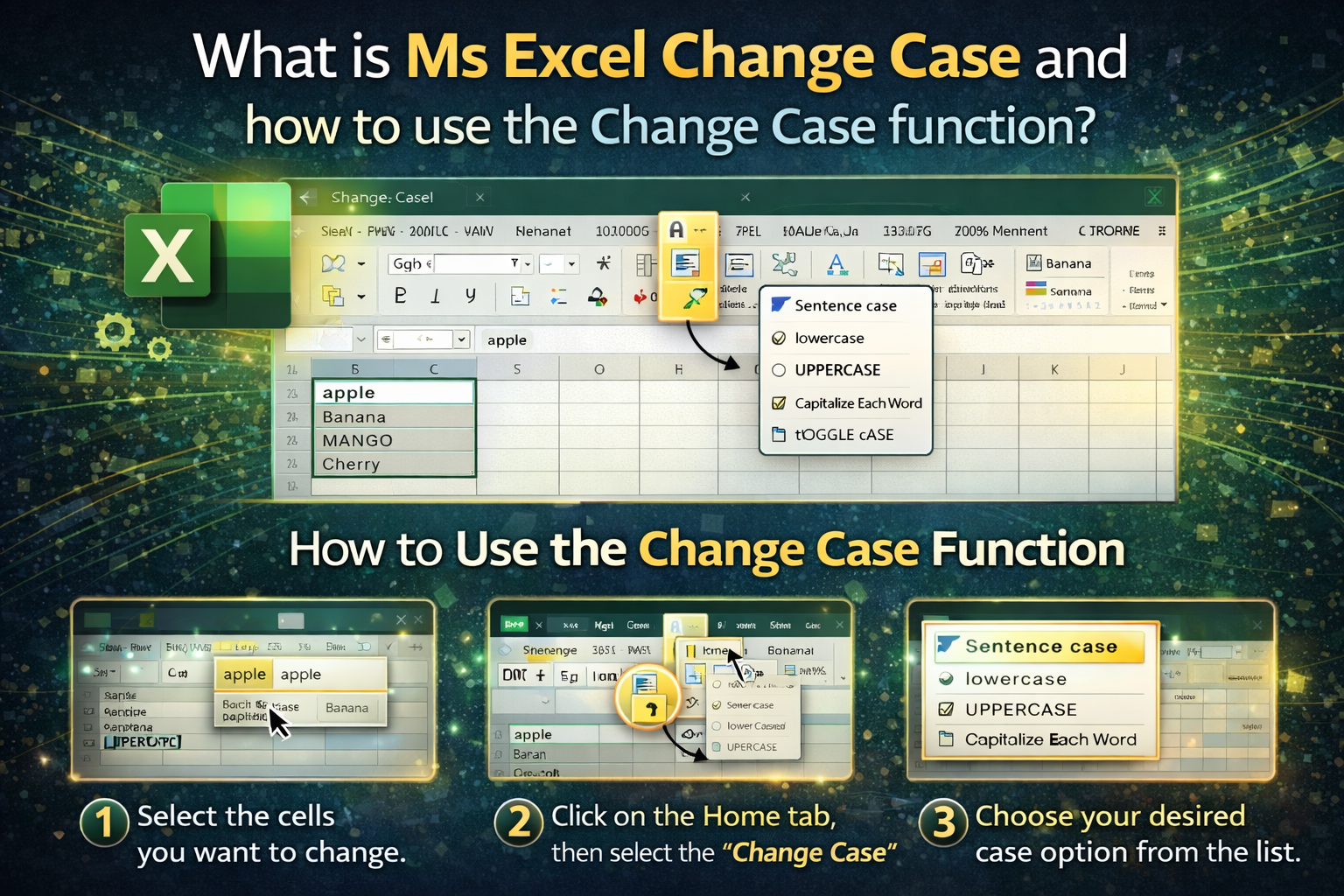
What Is MS Excel Change Case and How to Use the Change Case Function? — Complete Guide
Microsoft Excel is one of the most widely used spreadsheet applications in the world. From students and teachers to accountants, office workers, data analysts and business professionals — everyone relies on Excel to store, calculate, analyse and organise data.
But while working with text inside Excel, you might often face a common problem:
- Some words appear in lowercase
- Others are in ALL CAPS
- Some text contains mixed formatting
- Names or titles do not look professional
Manually correcting text can be tiring — especially when you’re working with hundreds or thousands of cells. That’s where the Change Case feature becomes extremely useful.
This article explains what Change Case is in MS Excel, how it works, how to use it, different case types, shortcuts, formulas, examples and best practices.
Let’s begin with the basics.
1. What Is Change Case in Microsoft Excel?
Change Case refers to the process of converting the text in a cell into a specific letter-case style such as:
✔ UPPERCASE
✔ lowercase
✔ Sentence case
✔ Capitalize Each Word
✔ tOGGLE cASE
In simple words:
Change Case helps you modify how letters appear — either capital or small — without manually retyping the text.
This is very helpful when formatting names, headings, reports, forms, titles and labels.
2. Why Do We Need Change Case in Excel?
Here are some common situations where it becomes useful:
✔ Cleaning messy data
Imported data often contains random letter formatting.
✔ Standardising records
Names, departments, cities and product titles should appear consistently.
✔ Improving readability
Proper letter-case makes reports more professional.
✔ Saving time
Instead of re-entering words, you simply convert them.
✔ Avoiding typing errors
Automation ensures accuracy.
So, Change Case = Faster + Cleaner + Professional-looking data.
3. Where Is the Change Case Option in Excel?
Unlike Microsoft Word, Excel does not include a dedicated Change Case button in the toolbar in most versions. However, you can still convert text using:
- Functions / formulas
- Power Query
- Flash Fill
- VBA (for advanced users)
- Add-ins or custom shortcuts
But the most common way is via Excel text functions, which we’ll explain next.
4. Functions Used for Changing Case in Excel
Excel provides three major text functions for changing letter case:
A. UPPER() — Convert Text to Capital Letters
This function converts every letter to uppercase.
Syntax:
=UPPER(text)
Example:
If A2 contains
hello world
Then:
=UPPER(A2)
Result:
HELLO WORLD
B. LOWER() — Convert Text to Small Letters
This function converts all characters into lowercase.
Syntax:
=LOWER(text)
Example:
If A2 contains:
ExcelISGREAT
Then:
=LOWER(A2)
Result:
excelisgreat
C. PROPER() — Capitalise the First Letter of Each Word
This function is used mainly for names, titles and headings.
Syntax:
=PROPER(text)
Example:
If A2 contains:
john william smith
Then:
=PROPER(A2)Result:
John William Smith
This is also called Title Case or Capitalize Each Word.
5. What About Sentence Case and Toggle Case?
Excel does not have built-in functions for:
Sentence case
tOGGLE cASE
But you can achieve them using formulas or helper methods. We’ll cover these later in the guide — so keep reading 🙂
6. Step-by-Step — How to Use Change Case Functions
Let’s see how to apply these functions in real work.
Example 1 — Convert Names to Proper Case
Suppose column A contains names such as:
rahul SHARMA
ANITA vermasureshIn column B, enter:
=PROPER(A2)Drag the formula downward.
Result becomes:
Rahul Sharma
Anita VermaSureshNow your data looks neat and consistent.
Example 2 — Convert Product Codes to UPPERCASE
Data in A2:
abx-123Formula:
=UPPER(A2)
Result:
ABX-123Useful for standardising codes or IDs.
Example 3 — Convert Text to Lowercase
Data in A2:
.COM
Formula:
=LOWER(A2)
Result:
.com
Great for cleaning email lists.
7. How to Replace Original Text After Changing Case
When you convert case using formulas, the output appears in another column. If you want to replace the original text, follow these steps:
- Apply the formula
- Select the result column
- Press Ctrl + C (Copy)
- Right-click → Paste Special → Values
Now only the text remains — not the formulas.
8. Create Sentence Case in Excel (First Letter Capital Only)
Sentence case means:
✔ First letter of the first word capital
✔ Rest lowercase
Example:
Thisisa sample sentence.
Here’s a working formula:
=UPPER(LEFT(A2,1))&LOWER(RIGHT(A2,LEN(A2)-1))
This converts only the first character to uppercase.
9. Create Toggle Case in Excel (Reverse Case)
Example conversion:
eXcElIsfUn
Formula:
=TEXTJOIN("",TRUE,IF(UNICODE(MID(A2,ROW(INDIRECT("1:"&LEN(A2))),1))>96,UPPER(MID(A2,ROW(INDIRECT("1:"&LEN(A2))),1)),LOWER(MID(A2,ROW(INDIRECT("1:"&LEN(A2))),1))))
(Entered as a dynamic array formula in modern Excel — no Ctrl+Shift+Enter needed.)
This flips upper to lower and lower to upper.
10. Using Flash Fill to Change Case
Flash Fill is a smart formatting feature.
Steps
- Type the corrected version manually in the next column
- Press Ctrl + E
- Excel automatically detects and continues the pattern
Example:
A2 = rahul sharma
B2 = Rahul Sharma
Press Ctrl + E → all other names will convert automatically.
11. Change Case Using Power Query (Advanced Users)
Power Query allows bulk text conversion easily.
Options available:
✔ LOWERCASE
✔ UPPERCASE
✔ CAPITALIZE EACH WORD
This is ideal when cleaning large datasets.
12. Keyboard Shortcuts — Do They Exist?
Excel does not include direct Change Case shortcuts like Word, but you can:
✔ Use formulas
✔ Use Flash Fill
✔ Set up your own macros (optional)
For Word users:
Shift + F3 works only inside Word — not Excel.
13. Real-World Uses of Change Case in Excel
Here are common practical examples:
Name formatting
Convert employee or student names into Proper Case.
Email list normalisation
Convert all emails to lowercase.
Product titles
Standardise names for e-commerce databases.
Codes & IDs
Ensure consistency in uppercase.
Address formatting
Improve readability.
Reporting
Make headings professional.
14. Common Mistakes Users Make
- Applying case change but forgetting to paste values
- Mixing Word and Excel shortcuts
- Overwriting original data without backup
- Formatting numbers using text functions
- Expecting Excel to have a built-in toggle option
Avoid these mistakes for smoother workflow.
15. Best Practices When Changing Case
✔ Always keep a backup
✔ Work in a new column first
✔ Convert formulas to values after finalising
✔ Use PROPER() for names
✔ Use LOWER() for emails
✔ Use UPPER() for codes
16. Limitations of Change Case Functions
There are some restrictions:
- Cannot selectively capitalise random letters
- PROPER() capitalises every word (including “of”, “the”, etc.)
- Special characters may behave differently
- Numbers remain unchanged
Even so, the functions are extremely reliable.
17. Frequently Asked Questions (FAQ)
Does Microsoft Excel include a Change Case feature similar to Microsoft Word?
No — but you can use formulas or Flash Fill.
Which function makes each word start with a capital letter?
Use PROPER().
How do I convert text to UPPERCASE?
Use:
=UPPER(cell)
How can I change sentence case?
Use a formula — explained earlier in the article.
Does change case affect numbers?
No — numbers stay the same.
18. Quick Reference Table — Change Case in Excel
| Case Type | Example Output | Function |
| UPPERCASE | HELLO WORLD | =UPPER(A2) |
| lowercase | hello world | =LOWER(A2) |
| Proper / Title Case | Hello World | =PROPER(A2) |
| Sentence Case | Hello world | Custom formula |
| Toggle Case | hELLO wORLD | Custom formula |
19. Summary — Understanding Change Case in Excel
Here is the concept in one simple line:
MS Excel Change Case is the process of converting text into uppercase, lowercase, title case or other letter styles using functions and tools.
It helps keep your data neat, professional and consistent.
20. Final Thoughts
Working with text inside Excel is not just about entering words — it’s also about presenting information in a clean and readable format. The Change Case functions in Excel make this easy by letting you automatically adjust letter formatting without re-typing everything manually.
Whether you’re working with names, email lists, product titles, reports or forms — once you master these tools, you’ll save time, avoid mistakes and create polished spreadsheets.